Set up Kestra
In this section, you will install Kestra on your local machine using Docker Compose and configure your environment. This setup closely mirrors a lightweight production environment, so the workflows you build here will behave the same way later.
Install Kestra
Before you begin, make sure you have Docker installed. Once installed, download the Docker Compose file from GitHub or using the command below in the terminal:
Linux/macOS:
curl -o docker-compose.yml \
https://raw.githubusercontent.com/kestra-io/kestra/develop/docker-compose.yml
Windows:
Invoke-WebRequest -Uri "https://raw.githubusercontent.com/kestra-io/kestra/develop/docker-compose.yml" -OutFile "docker-compose.yml"Once the file is downloaded, you can start Kestra with the following command:
docker compose up -dThis will start Kestra in the background or “detached” with a PostgreSQL database. This means you can close this terminal and Kestra will continue to run.
Now that Kestra is running, we can access it from the browser using http://localhost:8080. It will prompt you to set up an account so you can log in.
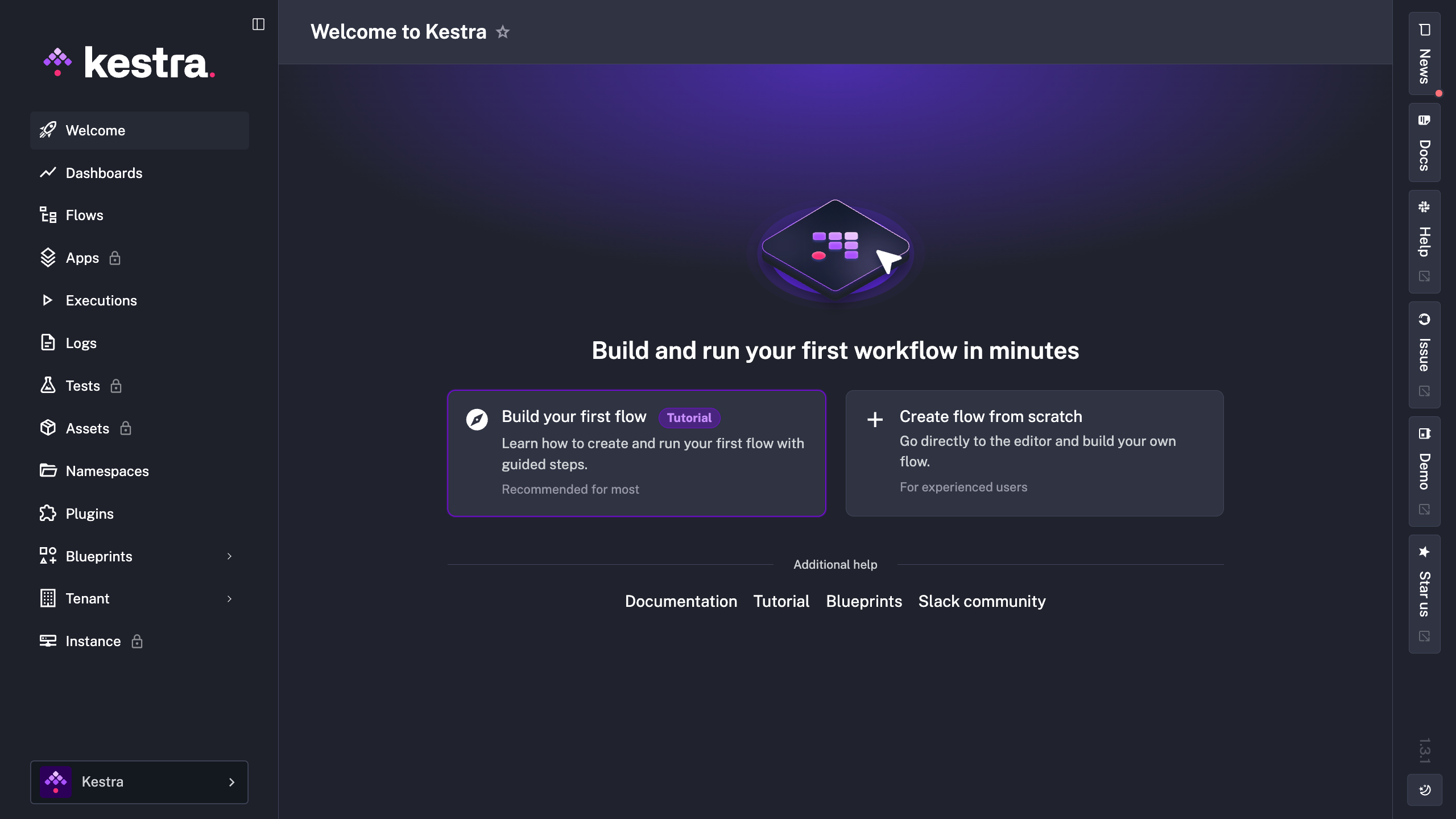
If you’d like to stop Kestra running, you can run the following command:
docker compose downConfigure Kestra
Inside of your docker-compose.yml file, there is an environment variable called KESTRA_CONFIGURATION . This is where we can configure our Kestra environment.
environment:
  KESTRA_CONFIGURATION: |
    datasources:
      postgres:
        url: jdbc:postgresql://postgres:5432/kestra
        driverClassName: org.postgresql.Driver
        username: kestra
        password: k3str4
    kestra:
      # server:
      #   basic-auth:
      #     username: admin@kestra.io # it must be a valid email address
      #     password: Admin1234! # it must be at least 8 characters long with uppercase letter and a number
      repository:
        type: postgres
      storage:
        type: local
        local:
          base-path: "/app/storage"
      queue:
        type: postgres
      tasks:
        tmp-dir:
          path: /tmp/kestra-wd/tmp
      url: http://localhost:8080/
For now, we can leave this as is, but this is useful if we want to add additional or change the configuration, such as changing our database provider or adding an API key for the Kestra AI Copilot.
For the full configuration reference, check out the reference documentation.
Summary
You should have Kestra running with Docker Compose and open inside of your browser. This means we're now ready to build our first workflow.