Triggers
So far, we've been manually clicking Execute to run our flows. But what if you want your workflows to run automatically? That's where Triggers come in.
Triggers are the automation engine of Kestra. They automatically start flow executions based on various conditions — no manual intervention required. Think of them as the "when" of your workflow: when should this flow run?
Types of Triggers
Kestra supports several types of triggers:
Schedule triggers run your flow on a routine basis using cron expressions (e.g., every day at 9 AM, every Monday, every hour)
Polling triggers periodically check for changes (e.g., new files in a folder, new rows in a database)
Realtime triggers respond instantly to events (e.g., a message in a queue, a new S3 file)
Webhook triggers start when an HTTP request is received at a specific endpoint
Flow triggers execute when another flow completes
Adding a Trigger
Let's add a schedule trigger to our flow so it runs automatically every day at 9 AM.
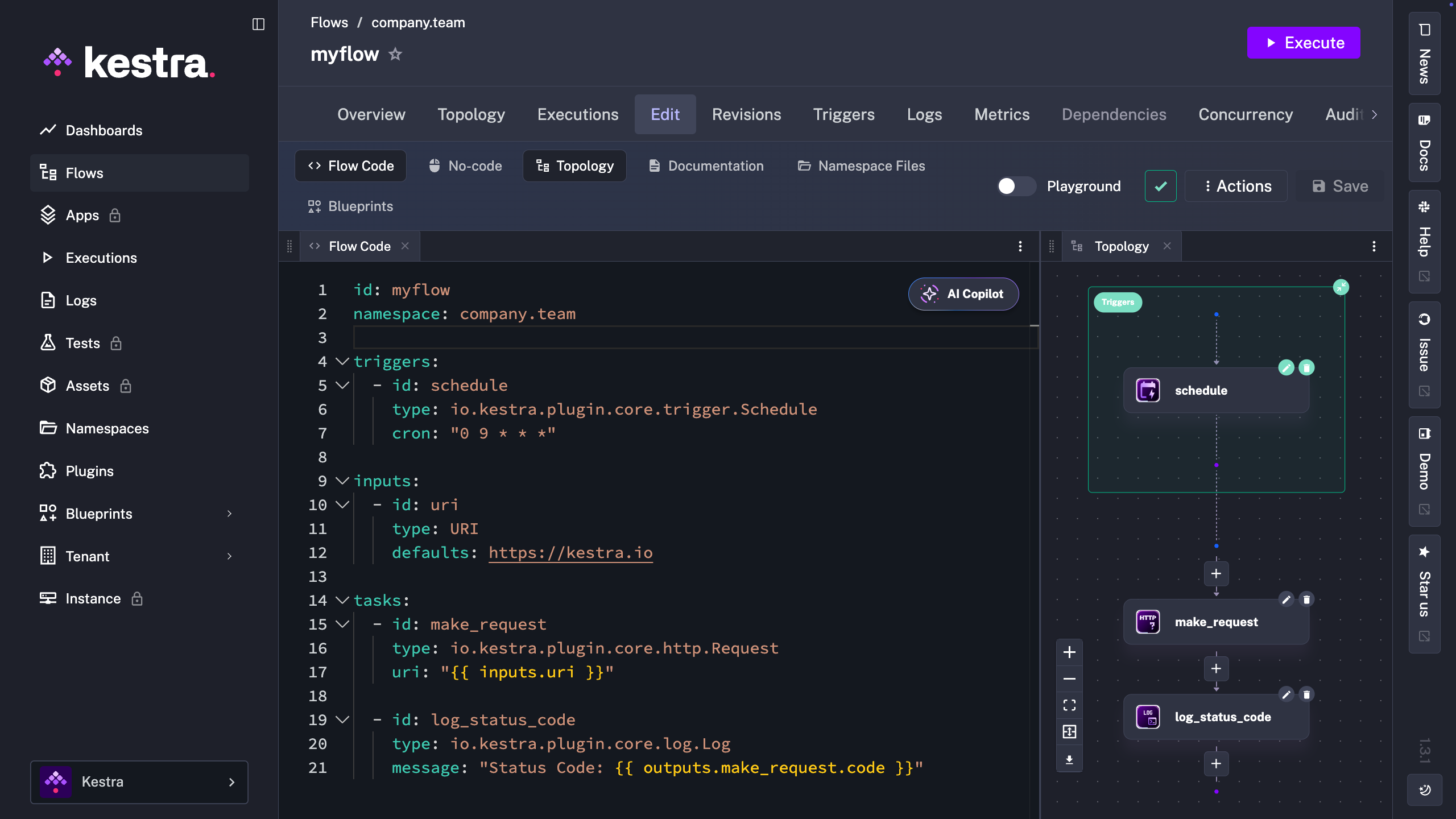
Triggers are defined in a triggers block, similar to how we define tasks and inputs. Like tasks and inputs, every trigger requires an id and a type. The schedule trigger also has a cron property, which is a compact schedule format that tells Kestra when to run (for example: “every day at 9 AM”):
id: myflow
namespace: company.team

triggers:
  - id: schedule
    type: io.kestra.plugin.core.trigger.Schedule
    cron: "0 9 * * *"

inputs:
  - id: uri
    type: URI
    defaults: https://kestra.io

tasks:
  - id: make_request
    type: io.kestra.plugin.core.http.Request
    uri: "{{ inputs.uri }}"

  - id: log_status_code
    type: io.kestra.plugin.core.log.Log
    message: "Status Code: {{ outputs.make_request.code }}"
Depending on the trigger type, there will be additional required properties (like cron for schedule triggers).
Passing Inputs Through Triggers
Triggers can also pass specific input values when they execute the flow. This is particularly useful when you want automated executions to use different inputs than manual runs. For example, you might manually test your flow with a staging URL, but have the scheduled trigger automatically run with a production URL.
You can also use this for different triggers to pass different parameters:
id: myflow
namespace: company.team

triggers:
  - id: schedule
    type: io.kestra.plugin.core.trigger.Schedule
    cron: "0 9 * * *"
    inputs:
      uri: http://kestra.io/docs

inputs:
  - id: uri
    type: URI
    defaults: https://kestra.io

tasks:
  - id: make_request
    type: io.kestra.plugin.core.http.Request
    uri: "{{ inputs.uri }}"

  - id: log_status_code
    type: io.kestra.plugin.core.log.Log
    message: "Status Code: {{ outputs.make_request.code }}"
Now when the schedule trigger fires at 9 AM, it will check kestra.io/docs instead of the default kestra.io.
Multiple Triggers
Flows can have multiple triggers, enabling sophisticated automation scenarios.
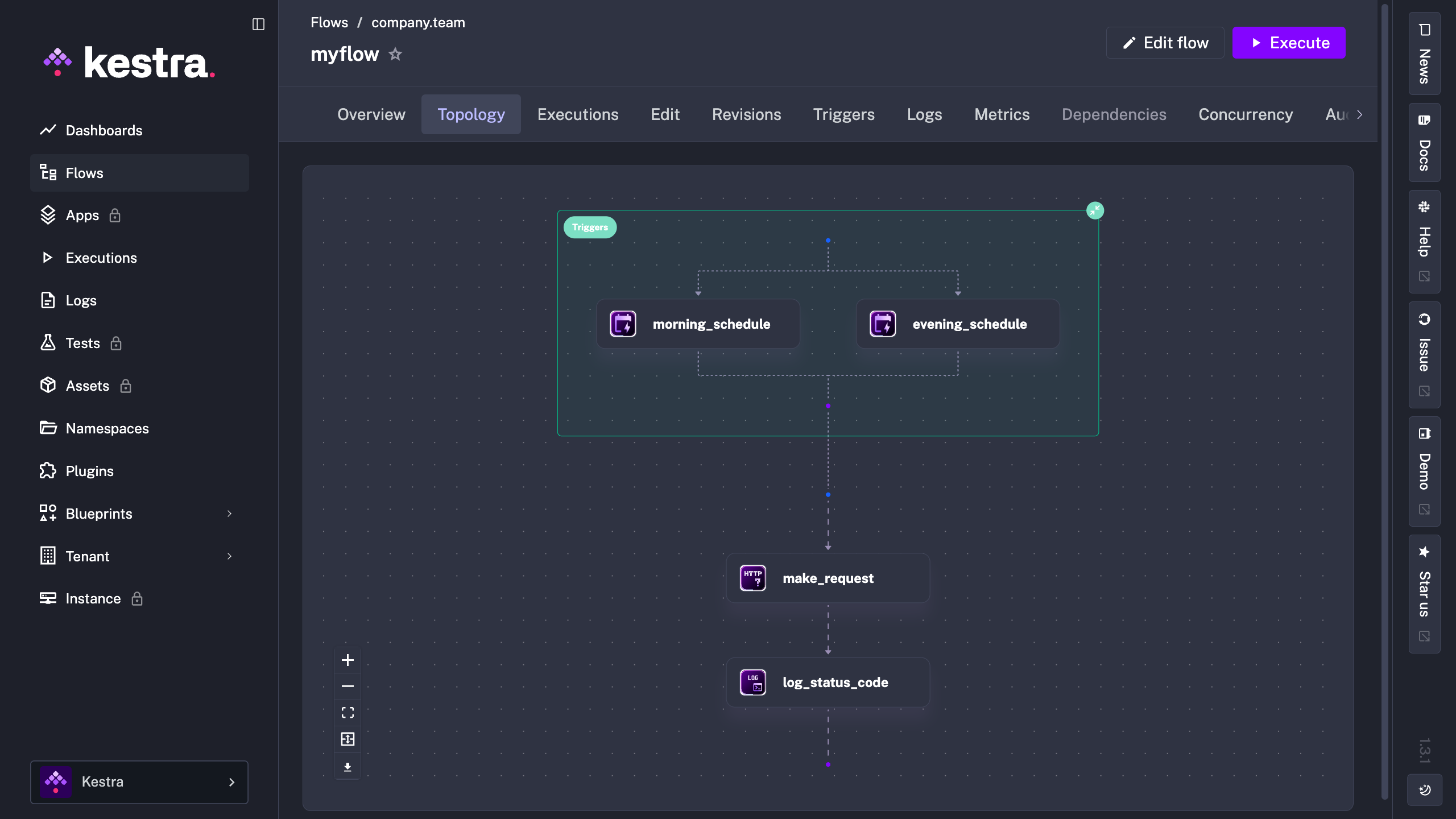
For example, you might want the flow to run on different schedules with different inputs:
id: myflow
namespace: company.team

triggers:
  - id: morning_schedule
    type: io.kestra.plugin.core.trigger.Schedule
    cron: "0 9 * * *"
    inputs:
      uri: https://kestra.io/docs

  - id: evening_schedule
    type: io.kestra.plugin.core.trigger.Schedule
    cron: "0 20 * * *"
    inputs:
      uri: https://kestra.io/plugins

inputs:
  - id: uri
    type: URI
    defaults: https://kestra.io

tasks:
  - id: make_request
    type: io.kestra.plugin.core.http.Request
    uri: "{{ inputs.uri }}"

  - id: log_status_code
    type: io.kestra.plugin.core.log.Log
    message: "Status Code: {{ outputs.make_request.code }}"
This flow now runs twice a day: at 9 AM checking kestra.io/docs, and at 8 PM checking kestra.io/plugins. Same flow, different schedules, different inputs.
Additional Trigger Features
Triggers have some powerful additional capabilities:
Conditions allow you to add criteria that must be met before the flow executes
Backfill lets you retroactively run scheduled flows for past dates through the UI, perfect for catching up on missed executions
There's much more you can do with triggers. Check out the triggers documentation to explore all the possibilities.
With triggers in place, your workflows can now run completely automatically, responding to schedules, events, and system changes without any manual intervention. Now let's explore how to make flows even more dynamic with expressions.