Inputs
Inputs make your flows dynamic. Instead of hard-coding values, you can parameterize your flow to accept different inputs each time it runs. This means you can execute the same flow multiple times with different values — no code changes needed.
For example, instead of hard-coding a filename or API endpoint, define it as an input. Run the flow once with data/january.csv, then again with data/february.csv — same workflow, different data.
Input Properties
Every input requires two properties (noticing a pattern?):
id— the unique identifier you'll use to reference ittype— the data type (STRING, INT, etc.)
You can also add optional properties like:
defaults— a default value if none are provideddisplayName— a user-friendly name shown in the UIrequired— whether the input must be provided at executiondescription— helpful context for users
Check out the input properties documentation for the complete list.
Input Types
Kestra supports several input types to match your data, for example:
STRING— text valuesINT— integer numbersSELECT— dropdown selection from predefined optionsJSON— structured JSON dataFILE— file uploadsURI— valid URI kept as a string
View the full documentation for all available types.
Using Inputs
Inputs are accessed using expressions like {{ inputs.name }} where the input ID is name.
We'll cover expressions in detail in a later section, but for now, all you need to know is that expressions are wrapped inside {{ }} delimiters.
We can take our original "hello world" example and add an input into it:
id: myflow
namespace: company.team

inputs:
  - id: name
    type: STRING
    defaults: Will

tasks:
  - id: hello
    type: io.kestra.plugin.core.log.Log
    message: "Hello {{ inputs.name }}"
Now the message dynamically uses whatever name input is provided. Much more flexible than our original static "Hello World!" message.
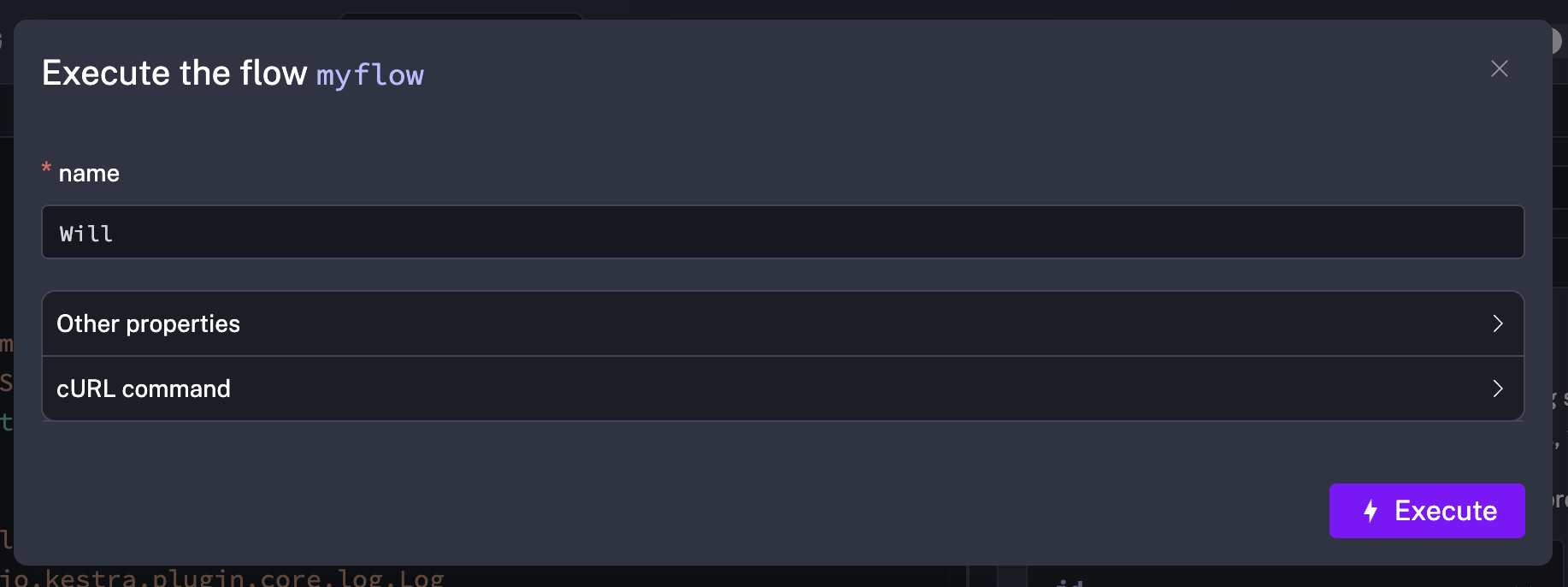
When you click Execute on a flow with inputs, Kestra presents a form where you can enter or modify the input values:
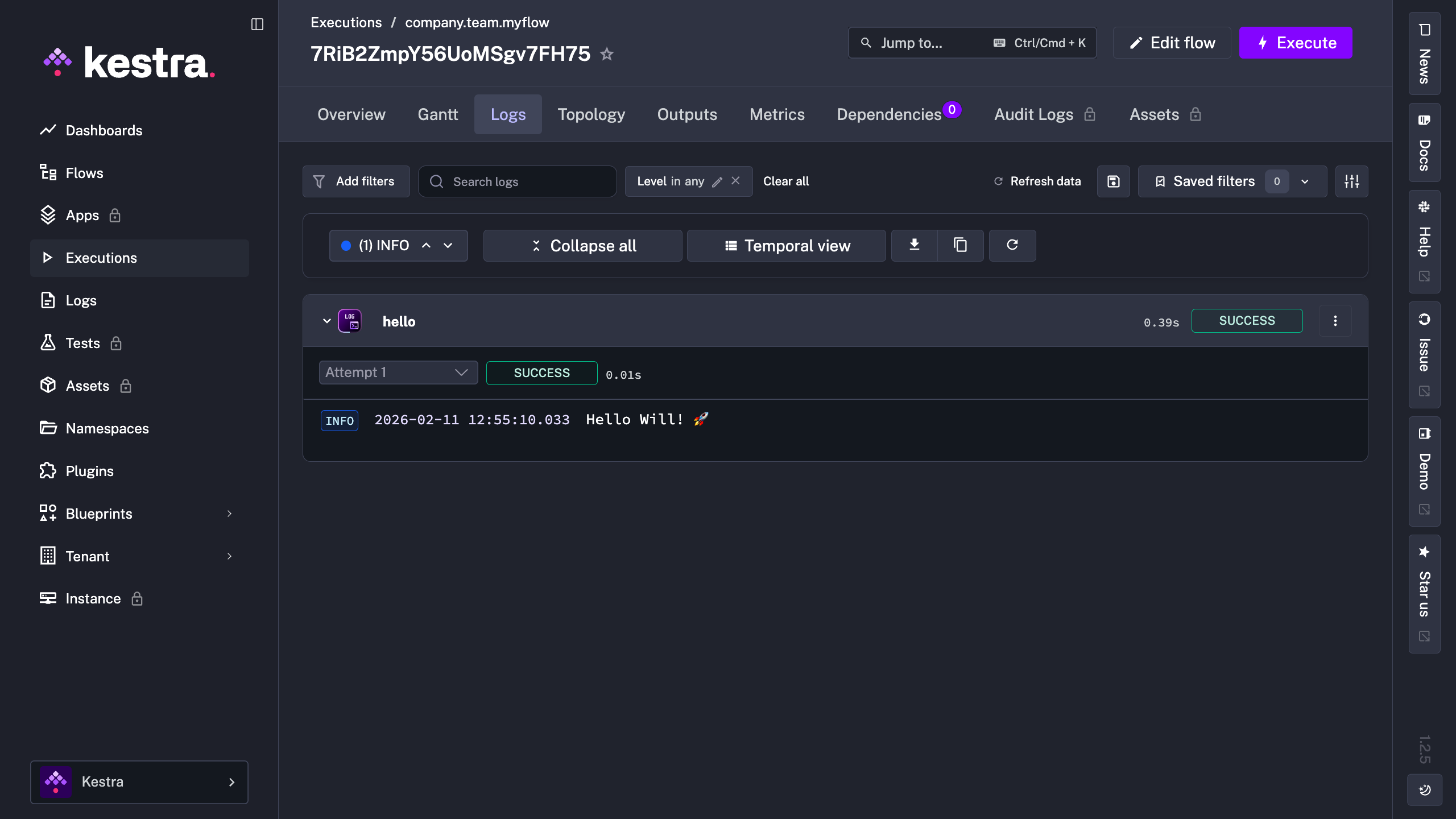
And when we execute this, we’ll see a new log message with our input:
So now we can pass data into our flows with inputs. But what about getting data out of our tasks? That's where outputs come in.